

Implementing approval workflows in Zendesk is straightforward, but success depends on understanding native capabilities before considering extensions.
As SweetHawk noted in a recent Gravity CX webinar, workflows can range from a simple setup in 5 minutes to a complex, multi-step process taking up to 5 days. The primary difference lies in workflow design rather than configuration.
Key Takeaways
- Zendesk’s native Approval Requests feature handles single-level approvals well on eligible plans (Employee Service Suite Growth+ and Customer Service Suite Professional+)
- Side conversations and triggers can mimic approvals, but these methods are fragile and do not scale effectively.
- SweetHawk Approve adds multi-step chains, conditional routing, and structured audit logs, without requiring approvers to have a Zendesk login
- Document your approval logic before configuring the system. Most implementation issues stem from poor design, not configuration errors.
- SweetHawk’s dynamic approver assignment, which references organisation or user fields, allows a single approval template to serve the whole organisation. Separate templates for each team are not required.
- Australian enterprise teams managing three or more approval workflow types typically require SweetHawk from the outset.
Before You Configure Anything: Map the Logic First
The most unsuccessful Zendesk approval implementations result from design issues rather than configuration errors. Before accessing Zendesk or installing Marketplace apps, document your entire approval workflow:
- Who can raise a request? Any agent, or only specific groups?
- Who needs to approve it? One person, a group (any member), or sequential approvers?
- What happens if the approver doesn’t respond? Is there an escalation path or a deadline?
- What does approval or rejection trigger? A ticket status change, an email notification, a downstream process?
- Are there compliance or audit requirements? Does someone need to export approval records for a regulatory review?
Clarifying these details typically takes 30 to 60 minutes per workflow type and will prevent significant rework later. Each approval type, such as IT access requests, HR leave, procurement sign-off, and vendor onboarding, requires its own logic map.
Option 1: Implementing Native Zendesk Approval Requests
Zendesk’s built-in Approval Requests feature is recommended if you are on an eligible plan and your approval logic is straightforward.
Eligible plans: Employee Service Suite Growth and above, or Customer Service Suite Professional and above.
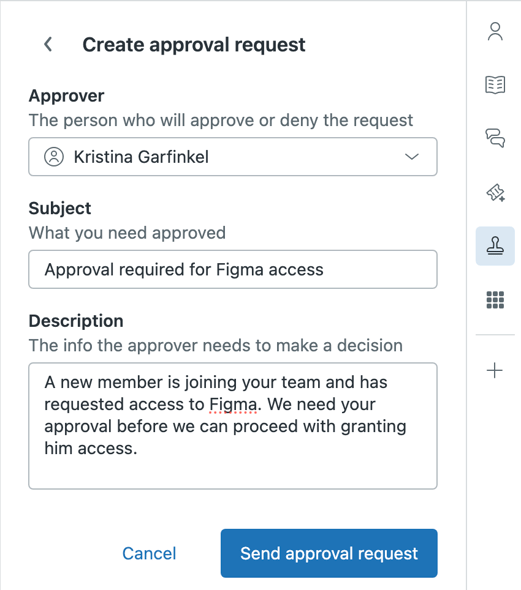
Step 1: Confirm the feature is available on your plan
In the Zendesk Admin Centre, navigate to Objects and rules, then Approvals. If you are on an eligible plan, the approvals configuration panel will appear. If it is not visible, verify your plan tier, as this feature is restricted to certain plans.
Step 2: Configure your approval settings
In the Approvals panel, configure the following settings:
- Approval name: The label displayed within tickets (e.g., “Manager Approval”, “IT Change Approval”).
- Approver selection: Assign a specific agent, an agent group (any member can respond), or allow the requester to nominate an approver at the time of request.
- Notification settings: Approvers receive an email with approve or reject options and do not need to log into Zendesk to respond.
Zendesk now supports group-based approvals, allowing any member of the designated approver group to respond. This feature is useful for covering leave and shared responsibilities. Refer to Zendesk’s approval request release notes for the latest updates.
Step 3: Test the flow end-to-end
Before deployment, test the workflow from both the agent and approver perspectives:
- Raise a request from a test ticket
- Confirm the approver email arrives correctly and the approve/reject buttons work
- Check that the ticket status updates correctly after a decision
- Verify the decision is recorded in the ticket history
A common mistake is assuming that approvals function correctly solely based on configuration. Always test with an actual email to a real approver, rather than relying on an admin panel walkthrough.
What native Zendesk doesn’t do
If you require any of the following, approvals will not be efficient:
- Two or more sequential approvers for the same request (e.g., line manager, then finance director)
- Different approvers based on ticket field values (e.g., requests over $10,000 route to CFO)
- A formal compliance audit log with timestamps and approver identity
For these requirements, use SweetHawk Approve or a custom API integration.
Option 2: Implementing SweetHawk Approve
SweetHawk Approve is a Zendesk Marketplace app that adds a dedicated approval panel to each ticket. It is widely used in Australian Zendesk environments and is compatible with all Zendesk Support plans, not only higher tiers.
Step 1: Install SweetHawk Approve from the Zendesk Marketplace
In Zendesk Admin Centre, navigate to Apps and integrations, then Marketplace. Search for “SweetHawk Approve” and install the app. A SweetHawk licence is required; visit sweethawk.com for current pricing and licensing details.
Step 2: Configure the SweetHawk approval panel in your ticket forms
After installation, SweetHawk adds an approval panel to your tickets. In the SweetHawk admin settings, configure the following:
- Approval templates: Define reusable approval configurations (e.g., “IT Access Request Approval”, “Procurement Approval”) with preset approver logic, so agents do not need to configure this for each ticket.
- Approver selection logic: Specify whether agents select approvers manually or if approvers are automatically assigned based on ticket fields or requester attributes.
- Required vs any-member approval: For multi-approver scenarios, indicate whether all approvers must respond or if a single approval is sufficient.
Step 3: Build your multi-step approval chains
SweetHawk offers advanced capabilities beyond native Zendesk, particularly for sequential approvals:
- Define the order of approver stages (Stage 1: Line Manager → Stage 2: Finance Director)
- Set the trigger condition for each stage. For example, Stage 2 activates only after Stage 1 is approved.
- Configure the outcome for each rejection, such as returning the request to the agent, notifying the requester, or both.
For conditional routing based on ticket values (such as request amount, department, or request type), set conditions in the SweetHawk template configuration. This usually involves mapping a Zendesk custom field value to an approver assignment rule.
Step 3b: Set up dynamic approver assignment (recommended for larger teams)
Instead of creating separate approval templates for each team, department, or cost centre, SweetHawk supports dynamic approver routing. The template references an organisation or user field in Zendesk, allowing the app to determine the approver at the time of the request and route accordingly.
This is worth setting up from the start if your organisation has more than 2 or 3 approval routing rules, or if your team's structures change regularly.
Step 4: Configure the approver email experience
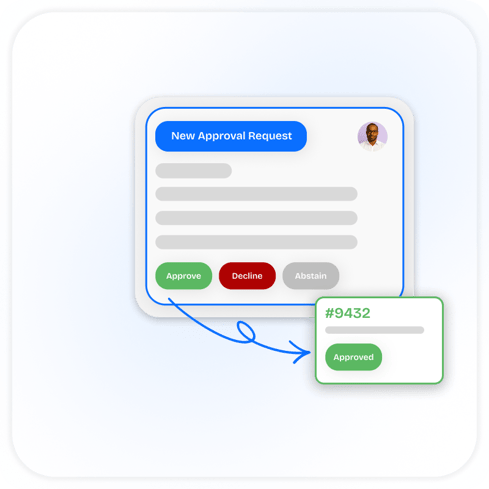
SweetHawk sends approvers a branded email with a single approve or reject button. Approvers can respond without logging into Zendesk, and no Zendesk licence is required.
Key settings to configure:
- Email subject and body: Ensure the request context is clear in the email so approvers understand what they are approving.
- Approval deadline: Optionally set a time limit, after which an automatic escalation or reminder is triggered.
- Reminder emails: Configure automatic follow-up emails if an approver has not responded within a specified period.
- Slack integration: SweetHawk supports approval notifications via Slack, so approvers can respond directly from their Slack workspace.
Step 5: Confirm the audit log setup
SweetHawk records every approval event, including requests sent, approved, rejected, and escalated, with timestamps and approver identity. Ensure the audit log is active and accessible to your compliance team in the required format.
For Australian financial services, healthcare, or government organisations, this is often a mandatory pre-go-live check.
Step 6: Test, then train your agents
Test every approval chain before go-live, including rejection paths and escalation scenarios. These edge cases often reveal configuration gaps. Once the setup is complete, conduct a brief agent training session. While the SweetHawk panel is intuitive, agents should know which template to use for each request type and how to proceed if an approver does not respond.
Implementation Mistakes Teams Commonly Make
Starting with the tool before designing the logic. Configuring approvals in Zendesk before mapping the workflow leads to rework. Spend the time up front.
Treating all approval types as a single workflow. HR, IT change, and procurement approvals each have distinct approver structures, compliance requirements, and escalation paths. Build separate templates for each, rather than combining them into one flow.
Not testing the approver experience. Most configuration testing happens from the agent side. Always test from the approver’s side: the email prompt, the approve/reject action, and what happens next, before rolling out.
Underestimating compliance requirements early. Teams may begin with basic approvals and later be asked for an audit trail. If you operate in a regulated industry, design for compliance from the outset, even if it is not immediately required.
Running both native and SweetHawk without a clear policy. While both approaches can operate in parallel, a lack of clear guidelines leads agents to default to their preferred tool. Standardise on one approach per workflow type.
How Approvals Fit Into a Larger Zendesk Architecture
Approval workflows are rarely standalone. In a mature Zendesk environment, they connect to:
- Ticket routing: Approval requests must be routed to the appropriate agent or team. Your routing logic determines how these requests are queued and prioritised.
- Custom ticket statuses: Purpose-built statuses such as “Pending Approval” or “Awaiting Finance Sign-Off” facilitate tracking approvals in queue views and Explore reporting.
- Automation and triggers: After approval is complete, downstream automations can close tickets, send confirmation emails, create follow-up tasks, or trigger integrations with other systems.
For a technical comparison of native Zendesk and SweetHawk capabilities, refer to Native Zendesk vs SweetHawk: Technical Comparison before deciding which approach to use.
Frequently Asked Questions
How long does it take to implement a Zendesk approval workflow?
For native Zendesk Approval Requests, a basic single-approver workflow can be configured and tested within a day. For SweetHawk Approve, a simple single-stage workflow can be live in as little as 5 minutes, as noted by SweetHawk in a recent Gravity CX webinar. More complex workflows may take up to 5 days. Multi-step chains with conditional routing and dynamic approver fields are more complex. The design phase, including mapping logic, approver groups, and edge cases, usually takes longer than the configuration phase.
Do approvers need a Zendesk licence to respond to approval requests?
No, for both native Zendesk and SweetHawk, approvers receive an email with an approve or reject button and respond without logging into Zendesk. This is important for organisations where approvers are senior stakeholders or department heads who aren’t active Zendesk users.
Can you build approval workflows in Zendesk without any apps, just triggers and automations?
Yes, but this approach is not recommended for production use. Triggers and side conversations can approximate approval notifications, but lack structured outcome tracking, audit logs, and native ticket status updates based on approver responses. Teams relying solely on triggers often encounter fragile workflows that fail as approval logic becomes more complex.
Is SweetHawk Approve available for Zendesk Suite Team plans?
SweetHawk Approve works with Zendesk Support plans at various tiers. Check SweetHawk’s documentation and the Zendesk Marketplace listing for current compatibility. Native Zendesk Approval Requests, by contrast, require Employee Service Suite Growth or Customer Service Suite Professional as a minimum.
What’s the difference between side conversations and approval workflows in Zendesk?
Side conversations let agents loop in an external party (an approver, colleague, or vendor) via email or Slack from within a ticket. But the response is captured as a message thread, there’s no structured outcome, no automatic ticket update, and no audit record beyond the conversation log. Approval workflows (native or SweetHawk) are purpose-built: they capture a structured yes/no decision, automatically update ticket status, and create a traceable record.
Ready to Build Your Approval Workflow?
Successful approval workflows in Zendesk depend on your specific use cases, compliance requirements, and current configuration. Our team partners with enterprise and mid-market organisations in IT, HR, finance, and procurement to design and implement scalable Zendesk approval workflows.
Want to see it in action? Watch the replay at our Online Webinar Hub. From there, navigate to the on-demand section to see how you can expand your Zendesk with Sweethawk.