

“Can I move my booking to 8pm?” “Did my reservation request go through?” “We were in last Friday I left my card behind.” If you run reservations on SevenRooms and guest support through Zendesk, every one of these tickets starts the same way: an agent opens SevenRooms in another tab, searches for the guest, and hopes the email matches. Multiply that by every venue in the group and it’s real time and real hold music.
So we built a SevenRooms Zendesk integration that puts the guest’s booking history directly in the ticket sidebar. It’s live now on the Zendesk Marketplace, with a free 7-day trial.

What the SevenRooms integration does
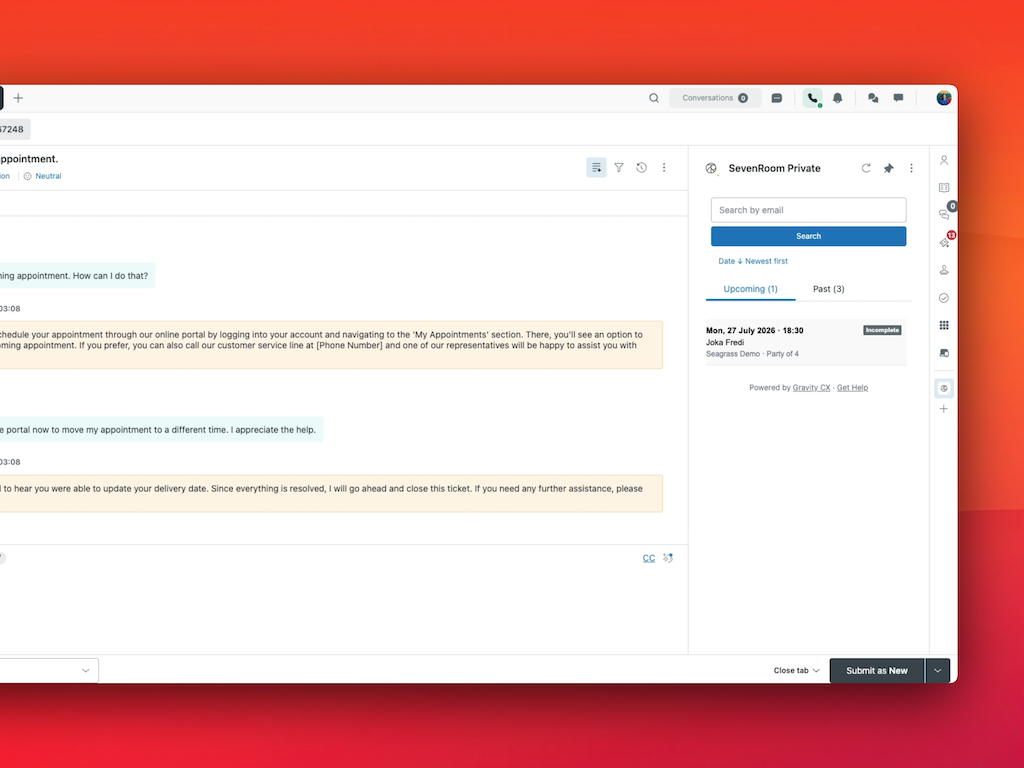
When an agent opens a ticket, the app looks up the requester’s SevenRooms reservation history by email and shows their bookings at a glance no tool-switching, no second screen.
- Reservations at a glance — upcoming and past reservations, plus pending reservation requests, grouped in the sidebar.
- Full detail, read-only — open any reservation or request to see its complete details without leaving the ticket.
- Search any guest — look up any guest’s reservations by email address, straight from the sidebar.
- One-click jump to SevenRooms — need to change a booking? The app links straight to the reservation in SevenRooms, so your booking data only ever changes in one place.
What this looks like on a busy Friday
A guest emails at 4pm: “We’re now six people, not four tonight at 7:30.” Without the integration, the agent searches SevenRooms manually, checks they have the right guest, and toggles between tabs while the queue grows. With it, the reservation is already on screen when the ticket opens: tonight, 7:30pm, party of four, confirmed. The agent clicks through to SevenRooms, updates the covers, and replies in under a minute. The same goes for “did my request go through?” tickets pending requests are visible instantly, which kills an entire category of back-and-forth.

Read-only by design
The app never creates, edits or cancels anything in SevenRooms it displays reservation information inside Zendesk and links out to SevenRooms for changes, so your booking data has a single source of truth. Your SevenRooms API credentials are stored as encrypted Zendesk secure settings and never exposed to the browser, and guest data is exchanged directly between Zendesk and SevenRooms never sent to us or any other third party.
How to set it up
One step needs a little lead time: the app talks to the SevenRooms API, so you’ll need API credentials for your venue group. Here’s the full path:
- Request API access from SevenRooms. Contact your SevenRooms account manager or SevenRooms support and ask for an API client ID and client secret for your venue group. Note your venue group ID while you’re there.
- Install SevenRooms Reservations from the Zendesk Marketplace.
- On the app settings screen, enter your Client ID, Client secret and Venue group ID.
- Enter the API base URL for your SevenRooms environment (US or EU production, or demo), including the trailing slash, and click Install.
- Open any ticket the SevenRooms Reservations panel appears in the right-hand sidebar.
Pricing
One plan: USD $1.00 per agent, per month, after a free 7-day trial. For a support team of twenty agents that’s $20 a month to stop paying people to re-type email addresses into a second system. The app is actively maintained by our team.
Who it’s for
Hospitality groups running SevenRooms for reservations and Zendesk for guest support: restaurant groups with a central guest-relations team, hotel food & beverage operations, clubs and venues taking reservation requests at volume. If your Zendesk queue fills with booking changes, reservation confirmations and “did you get my request?” emails, this closes the gap between the two systems your team lives in.
Frequently asked questions
Can agents change or cancel reservations from Zendesk?
No by design. The app is read-only: agents see everything they need to answer the guest, and one click takes them to the reservation in SevenRooms to make the change there. Bookings only ever change in one system.
How does the app find the right guest?
It looks up the ticket requester’s email address in SevenRooms automatically. Agents can also search for any guest by email from the sidebar useful when someone writes in from a different address than the one they booked with.
What do I need before installing?
A SevenRooms API client ID and secret for your venue group your SevenRooms account manager or SevenRooms support can issue these plus your venue group ID and admin access to Zendesk Support. The Zendesk side takes about two minutes.
Is guest data shared with anyone?
No. Data moves directly between your Zendesk and your SevenRooms accounts. Gravity CX collects no personal information about guests or tickets only app usage and installation data. API credentials are stored as encrypted Zendesk secure settings.
Try it free for 7 days
Install SevenRooms Reservations by Gravity CX from the Zendesk Marketplace and give your agents the guest’s bookings on every ticket. It’s part of Zendesk OS, the software layer we built for our own clients alongside our Xero integration, Automated Health Check, Faqify and Agent Ticket Chat.
Running Zendesk for a hospitality group and wondering if the rest of your setup is pulling its weight? Run our free 2-minute Zendesk health check it reads your actual configuration and 30 days of usage, read-only, and shows you exactly where the gaps are.